Workspaces
Separate environments while sharing account limits and team access.
2 min readGive each environment a home
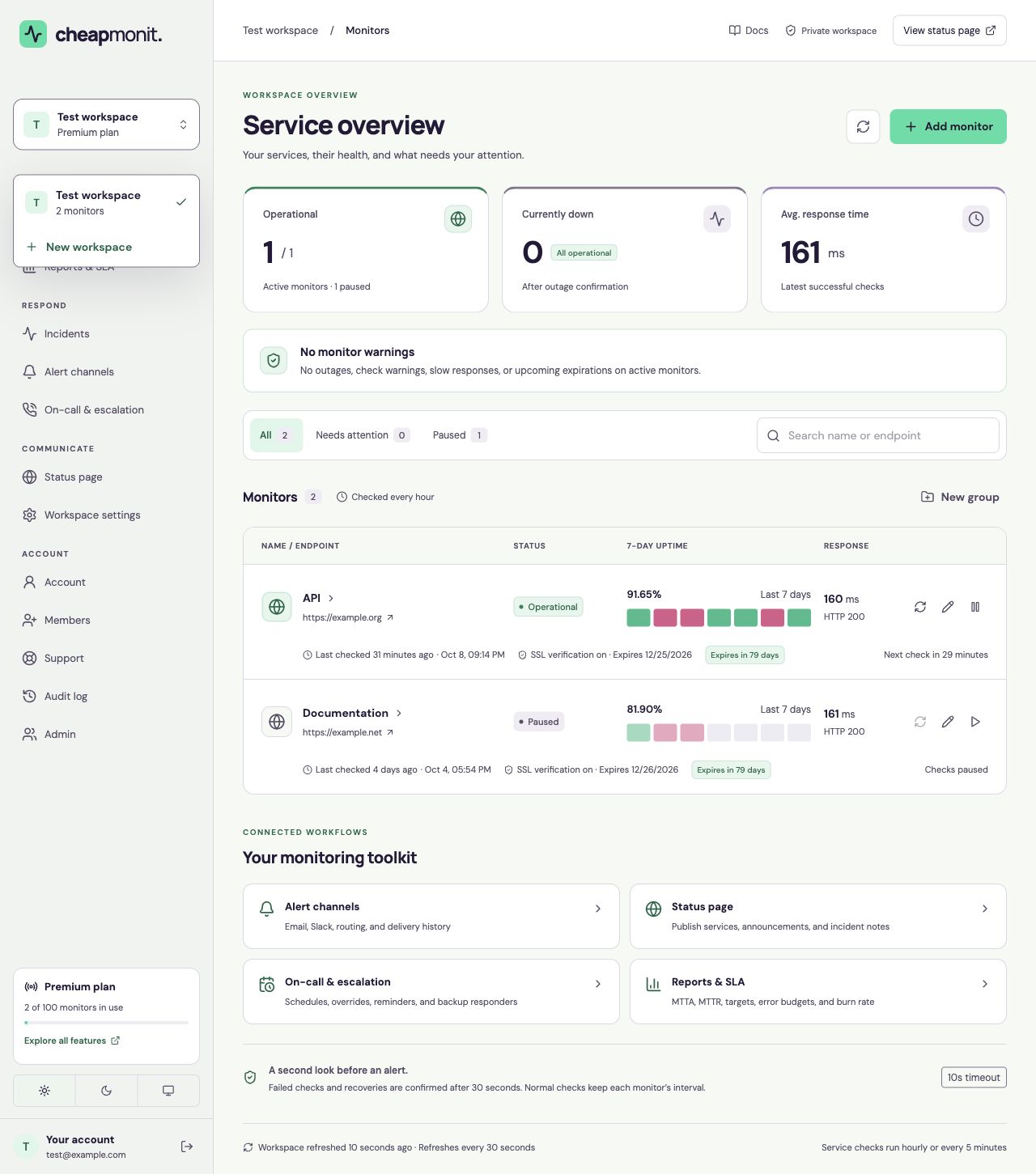
A workspace has its own monitors, notification channels, incidents, on-call settings, and status page. Use one per environment, platform, or customer-facing service when those services need separate views.
The free account owns one workspace. Premium can own up to 10; the 100-monitor allowance is shared across those workspaces, including paused monitors.
 View full size
 Create and switch workspaces
- Open the workspace selector above the dashboard navigation.
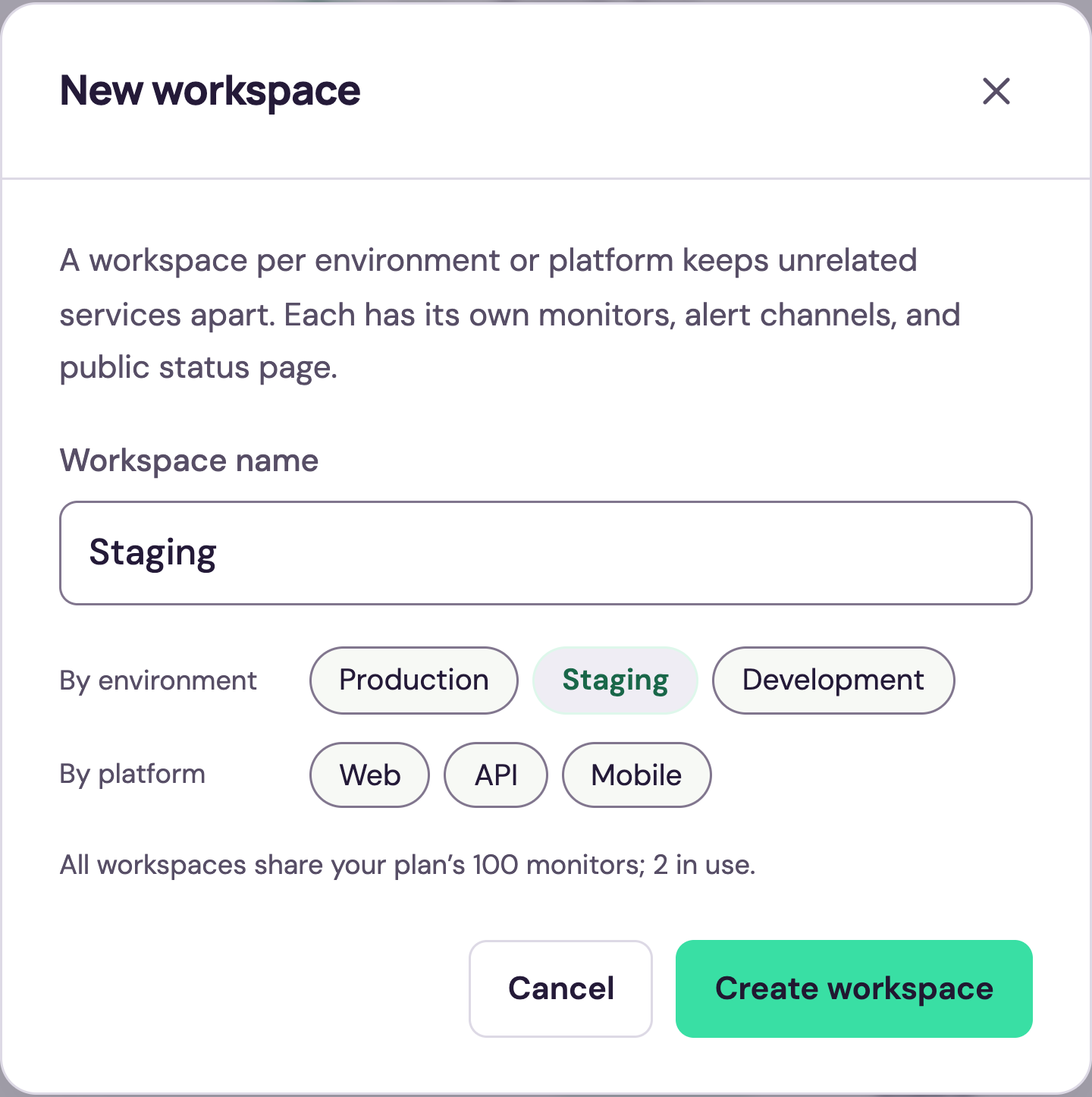
- On Premium, select New workspace. Choose a suggestion such as Staging, or enter a name.
- Select Create workspace. Reopen the selector whenever you want to switch to another workspace you can access.
- Use Workspace settings to rename the active workspace.
 View full size
 Keep access clear
The workspace owner’s plan determines its capabilities. Members can work in the workspaces they were granted; the account owner chooses all-workspace or single-workspace access from Members.
Each workspace has one owner. Members have full access within their granted workspaces, and ownership transfer or additional permission roles are not available.
Review changes
Audit log records who changed a workspace or account, what changed, and when. Workspace entries are visible only to its owner and members. Account entries remain private to that account.
Deleting a workspace permanently removes its monitors, history, channels, and status page. Review the confirmation carefully; deleting your only owned workspace is handled through account deletion.