Incident responsePremium · early access
Escalation policies
Email backup responders when an outage remains unacknowledged.
1 min readThis guide covers Premium features. Premium is in early access and cannot be bought yet.
Build a policy
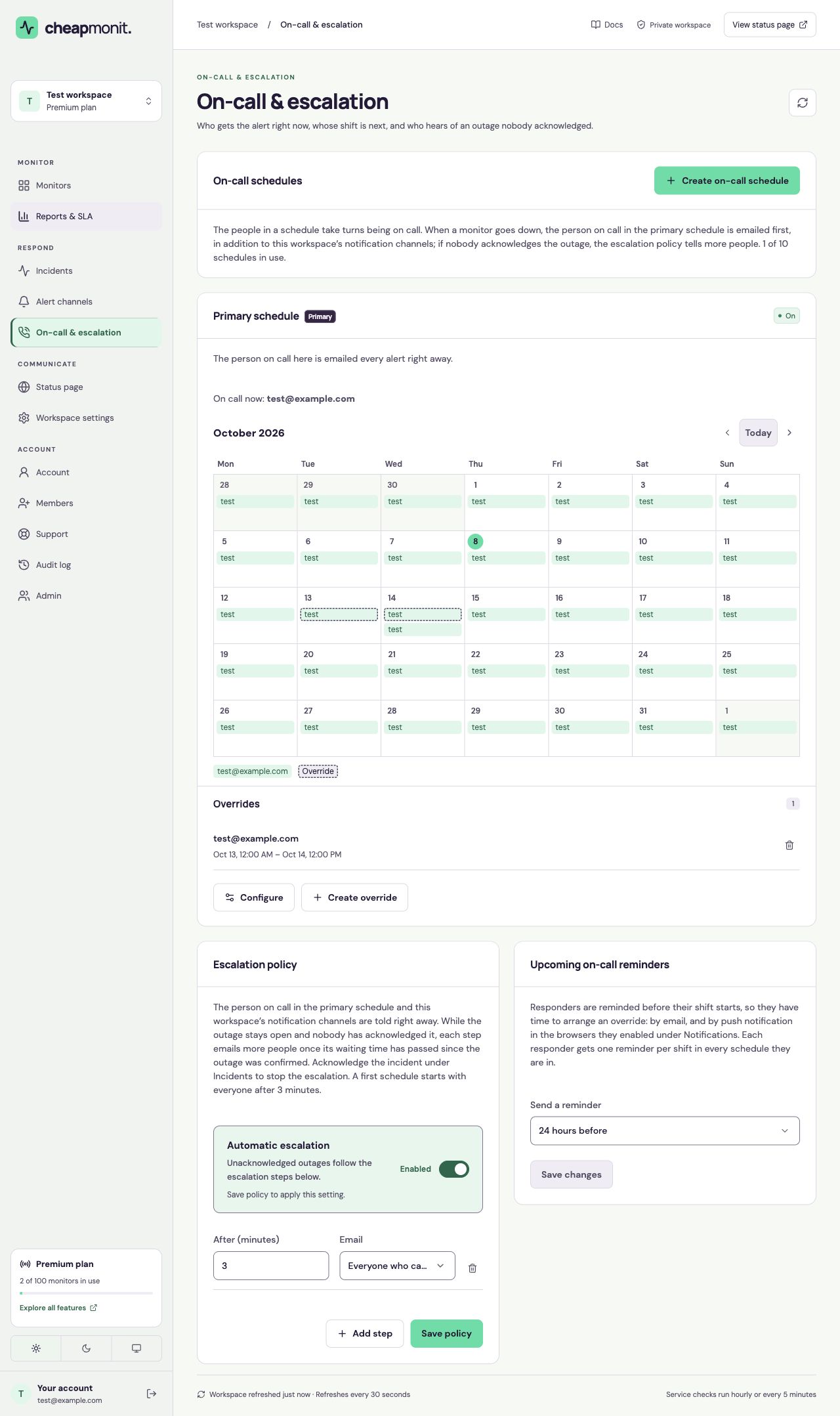
- Open the Escalation policy panel under On-call & escalation.
- Enable Automatic escalation and add up to five steps.
- For each step, choose a distinct waiting time between 1 and 1,440 minutes, measured from the confirmed outage start.
- Choose everyone in the workspace, one person, or the person on call in a backup schedule as the email target.
- Select Save policy to apply the switch and steps.
 View full size
 When escalation stops
A step runs only while an enabled monitor has an open, unacknowledged incident and the workspace owner is on Premium. Acknowledgement stops later escalation steps. Each step queues its emails once.
Turning off Automatic escalation keeps the steps for later. The first schedule creates a default policy of everyone after 3 minutes only when no policy already exists.
Escalation sends email
The normal outage notification still goes to the workspace’s active channels and the primary on-call person. Escalation steps add email recipients; they do not send Slack, webhook, push, SMS, or phone-call escalations.